
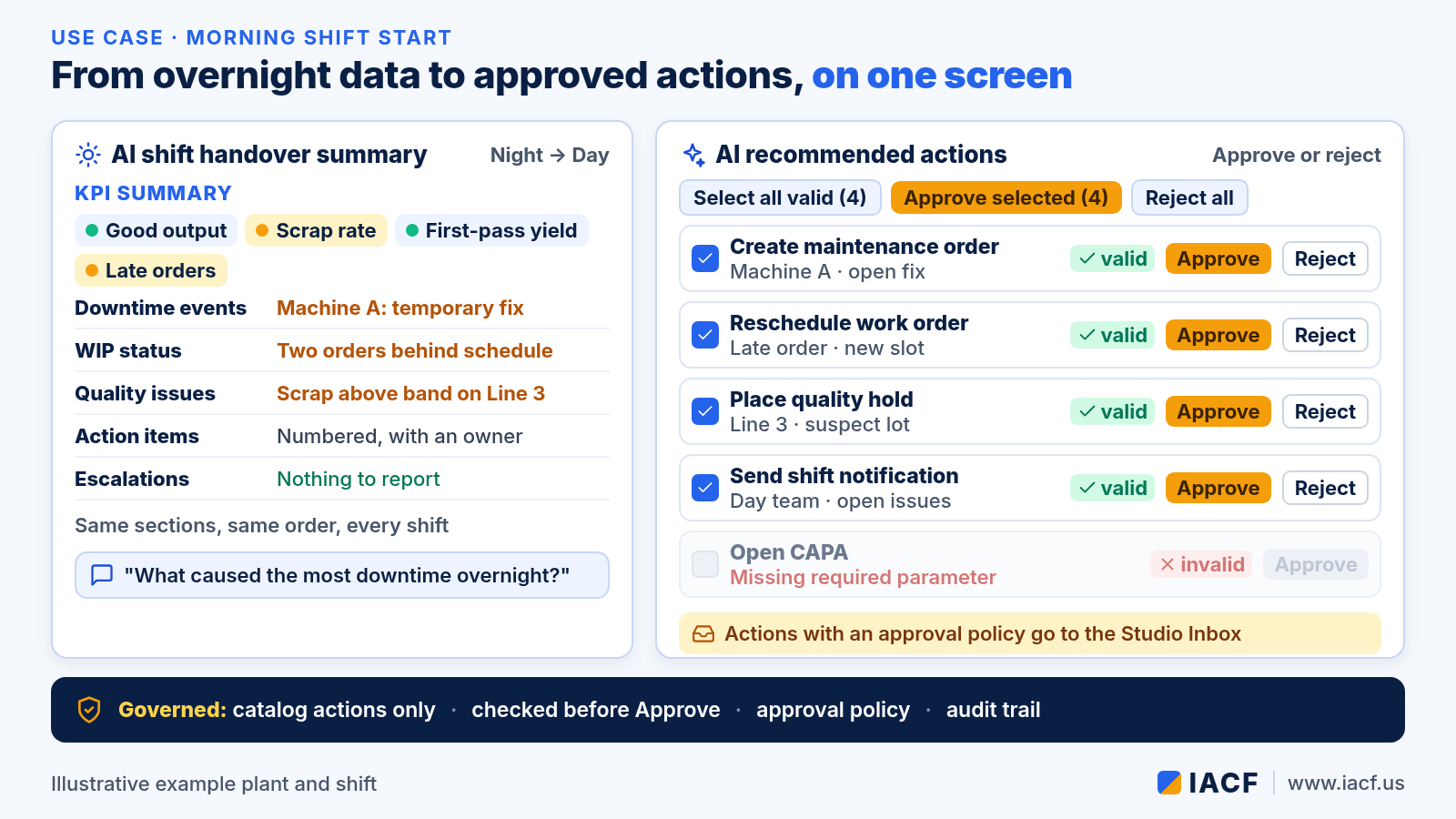
The first half hour of a shift sets the tone for the next eight. What happened overnight? What is still open? What needs a decision now? Too often the answers are scattered across the MES, the ERP, the maintenance backlog, quality records and a handover note. This article walks through one shift start and shows how IACF’s MoM-MCP brings it together on one screen. MoM-MCP is the bridge between AI and large language models (LLMs) and the manufacturing applications a plant already runs: MES/MoM, ERP, PLM, CRM, QMS and others.
New to MoM-MCP? Start with the introduction to MoM-MCP.
The scenario
Picture an example plant at 6:00 AM, minutes before the day shift’s start-up meeting. Overnight, a machine went down and only got a temporary fix, two orders slipped behind schedule, and scrap rose on one line. What matters is how quickly the supervisor can see it and act.
This scenario is illustrative. It shows how the features work together, not results from a specific customer.
Step by step
1. The overnight picture is ready before the shift starts
A MoM-MCP scheduled job can run a briefing skill at a set time, for example at 06:00 for the previous shift. The skill reads governed, SELECT-only datasets from whichever applications are connected: production output and pacing, WIP age by work center, downtime events, maintenance backlog, scrap by reason code and open orders.
The AI shift handover summary skill turns that data into a briefing a supervisor can read in about three minutes. The sections always come in the same order: KPI summary, downtime events, WIP status, quality issues, action items for the incoming shift, and escalations. If a section has no data, it says “Nothing to report” rather than guessing. Any downtime that is still open or only temporarily fixed, and any order more than a day late, must also show up as an action item. On the dashboard, threshold colors and alerts flag what is out of range, such as scrap rate, first-pass yield, stagnant WIP or long downtime.
2. Ask what changed, in plain language
The supervisor can ask Agent Studio chat follow-up questions, such as “Which equipment caused the most downtime overnight?” or “What does this reason code mean?” The chat planner picks the right tool for each question. It can run a skill or a governed dataset, generate a query for an ad-hoc question, or look up a definition in the plant’s own reference data. Answers come back as KPI cards, charts and tables, limited to what the user’s role allows.
3. Review recommended actions in the action panel
The action panel widget asks an action-recommendation skill to propose concrete next steps. It uses the same overnight datasets and only the actions the dashboard allows. In the shipped Plant Daily Operations Report, those actions are rescheduling a work order, creating a maintenance order, placing a quality hold, opening a CAPA and sending a shift notification to the next team.
Before an Approve button appears, every recommendation is checked against the action catalog and its parameter schema. A card with a missing or invalid parameter is greyed out, its errors are listed, and its Approve button is disabled. The AI can’t invent an action or a free-form write. For the broader pattern, see Inside the MoM-MCP flow engine.

4. Approve, one card at a time or in bulk
The supervisor can approve or reject each card individually, or select all valid cards and approve them together. Approved actions run one after another, so one failure doesn’t affect the rest. Writes go only through preconfigured REST actions or flows into the target systems. Nothing is written directly into core MES tables.
If an action needs more than one signature, an approval policy can be attached to it. A policy can have sequential stages, and each stage can include parallel approvers by role. For example, a maintenance work order could need a maintenance manager and then the plant manager. The person who requested an action can never approve their own request. Each approver sees the request in the Studio Inbox with its full context: which dashboard and skill produced it, what the recommendation says and why, and which system the action will touch. Approvers can also get an email notification. Stalled stages can escalate. After the last approval, MoM-MCP re-checks the requester’s current permissions before anything runs.
5. Every step leaves a record
Each executed action is written to MoM-MCP’s hash-chained audit log. The AI-action audit trail also records whether an action came from an AI recommendation, which approvals it went through and which system it ran against.
The first 30 minutes, before and after
- One screen instead of several. The overnight summary, the KPIs out of range and the proposed actions sit together.
- A consistent briefing. Every shift gets the same sections, and open issues can’t silently drop off the list.
- Questions answered on the spot. Follow-ups are answered from governed data, not a separate report request.
- Decisions with guardrails. Only catalog actions, checked before approval, signed off by the right roles, and recorded.

Deeper follow-ups use the same governed pattern, such as the quality response loop for a scrap spike and material shortage prediction for components that will run short.
Where it runs
The shift-start screen is an ordinary MoM-MCP dashboard. It combines the shift summary, KPI and table widgets and the action panel, viewed in Agent Studio or in MoM Portal, the standalone end-user portal that talks to MoM-MCP over MCP and REST.
Status note: The shift handover skill, action panel with validation and bulk approve, Agent Studio chat and scheduled jobs are part of MoM-MCP today. Multi-stage approval policies, the Studio Inbox and the AI-action audit trail are newer capabilities in the latest MoM-MCP version.
Start your next shift with one screen
Want to see how a governed shift-start screen would look on your own MES, ERP, maintenance and quality data? Visit www.iacf.us or email info@iacf.us.
Leave a Reply